Pickface Replenishment Types: Continuous Pickfaces
Introducing Pickface Replenishment Types:
All pickfaces are picked in the same way: a task directs you to the location to collect the required stock. The difference lies in how and when those locations are replenished. To optimise warehouse performance and maintain consistent stock availability, Clarus now supports two key replenishment types that can be assigned to your pickface locations.
How Does Continuous Replenishment Work?
Continuous Replenishment keeps pickface locations consistently stocked. Multiple pickfaces can be configured for the same product, allowing stock to be replenished as needed. Pick tasks are automatically shared across all active and eligible locations, ensuring balanced workload and efficient picking.
How It Works Step by Step:
- Stock Replenished into empty Pickface (from setup)
Stock can be replenished in two ways:
- Manual Transfer (Preferred): Manually transfer stock into the newly created continuous pickfaces.
- Automatic Replenishment: Once a sales order has processed picks, the system will automatically generate a replenishment task for any empty pickfaces.
- A Pick Task is Generated:
When a sales order or pick task is created, and the item can be fulfilled from a continuous pickface, the system automatically assigns the task to the first available continuous pickface defined in the product setup configuration.
- Stock Validation within Pickfaces:
Before assigning a pick task to a location, the system checks stock availability and shelf-life requirements across all configured pickfaces:
- If all pickfaces meet the shelf-life criteria, the pick task is assigned to the next pickface in rotation to balance picking activity.
- If no pickface can meet the shelf-life criteria or there is no stock available, the pick task is placed on hold until a replenishment occurs in a pickface that meets the required conditions. (Important)
- Picking From Pickface
When multiple pick tasks are generated for the same product:
- The system distributes pick tasks evenly across all eligible pickface locations that meet the required criteria.
- Tasks are allocated according to the order defined in the Pickface panel on the product setup screen.
- Replenishment Into Pickfaces
- Each continuous pickface must have a minimum trigger quantity configured. This threshold determines when a replenishment task should be created.
- If stock within a pickface drops below the minimum trigger level, due to picks, transfers or negative adjustments the system automatically generates a replenishment task to top up that location to its configured capacity.
How both replenishment types can work together:
The 'Continuous' and 'Demand' replenishment settings can be used simultaneously for the same product by assigning them to different pickface locations based on operational needs. Here's how they work together:
- Continuous Replenishment ensures that a pickface is regularly restocked to maintain stock availability. This is ideal for fast-moving items that need to be consistently available.
- Demand Replenishment triggers replenishment only when a pick task requires stock that isn't available in another pickface, ensuring that specific order demands are met.
How They Work Together
Primary Pickface → Continuous Replenishment: A regularly replenished location that holds the majority of stock for standard picking.
Secondary Pickface → Demand Replenishment: A separate location used when stock from the primary pickface is insufficient for a specific order (e.g shelf-life requirement).
Example:
- Product 123: Customer 456 - Shelf Life: Min=5 days, Max=10 days
- Pickface 1 (Continuous): Quantity=10 | Sell by Date on Stock=15 Days
- Pickface 2 (Demand): Empty
- Racking: SU Quantity=20 | Sell by Date on Stock=5 Days
- Sales Order
- Customer 456
- Quantity = 7
- In this example, when I process picks on the sales order above, the pick task of 7 will go on hold and an available replenishment task will be generated for the demand pickface. The reason for this is because customer 456 requires stock with a maximum sell by date of 10 days, the stock in the continuous pickface has 15, therefore the stock within the continuous pickface doesn’t meet the shelf lives required for the customer on the sales order.
By using both settings, warehouses can ensure high availability while also responding dynamically to specific picking needs.
Guide to setting up pickfaces:
1. Navigate to the Product:
- From the left-hand menu, click on Products.
- Locate and select the product you want to configure pickfaces for.
2. Assign Locations
- Open the Pickface panel.
- Click New to add a new pickface location.
2A. Assign Location Groups (optional):
Use Location Groups to manage multiple pickfaces for a product simultaneously, ensuring consistency and efficiency.
Location groups can be configured within the Groups page in Clarus.
All Locations within a group must have the Is Pickface? flag set to Yes.
Once a group is assigned to the pickface panel, you can manage settings for the entire group or customise individual locations as needed.
3. Assign settings to the locations
3a. Select Replenishment Type:
Choose the replenishment strategy that best fits your product’s picking and stock flow:
- Continuous Replenishment: A replenishment task is generated automatically when the minimum trigger level is reached.
- Demand Replenishment: A replenishment task is generated only when a pick task cannot be fulfilled by another active pickface.
3B. Define Minimum and Maximum Triggers
(Required only when Continuous Replenishment is selected.)
- Minimum Trigger: The stock quantity that triggers a replenishment task when levels drop below this threshold.
- Maximum Trigger: The target quantity to replenish up to when restocking the pickface.
- If the ‘Full Storage Units Only’ toggle is set to Yes, the Max Trigger is overridden (see below).
3C. Specify Full Storage Units
Determine whether replenishment should use only full storage units.
- Toggle ‘No’: The replenishment task will top up to the Max Trigger level, even if it means breaking down a storage unit.
- Toggle ‘Yes’: Only full storage units will be replenished into the pickface. This overrides the Max Trigger setting.
- For example, if the Max Trigger is set to 100 and each storage unit contains 60, the system will bring 2 full storage units (120 units) into the pickface
- For example, if the Max Trigger is set to 100 and each storage unit contains 60, the system will bring 2 full storage units (120 units) into the pickface
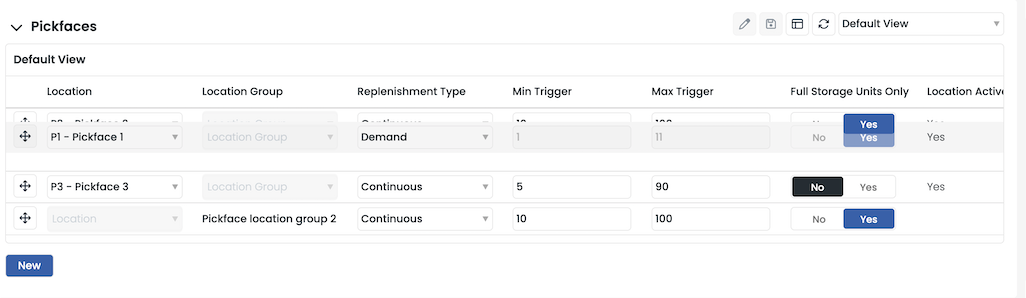
4. Prioritising the Locations
- Use the arrow controls on the left-hand side of each location to reorder them. The order determines the sequence in which pickfaces are used when assigning pick tasks or replenishments.
FAQs
Why is my pick task on hold?
In short, your pick task is on hold because the system is waiting for stock to be replenished into a pickface to fulfil the pick task.
Specifically: The pick task will go on hold when there is no stock that can fulfil the requirements of the pick task in any pickface
How does the account pick rule affect my assigned pickfaces?
Clarus will use your account pick rule to determine the stock that is replenished into a pickface:
First in First Out:
The system replenishes stock with the earliest FIFO date into the next available pickface.
Sell by Date:
The system replenishes stock with the earliest sell-by date into the next available pickface.
Clarus will use your account pick rule to determine the stock that is replenished into a pickface:
First in First Out:
The system replenishes stock with the earliest FIFO date into the next available pickface.
Sell by Date:
The system replenishes stock with the earliest sell-by date into the next available pickface.
Why does the order of the locations matter?
The order of locations is crucial because it dictates how the system assigns pick tasks to pickfaces when multiple ‘Continuous’ replenishment pickfaces are assigned to a product. The system follows a sequential and alternating allocation method, ensuring balanced usage across all available pickfaces. See example below:
Pick tasks are assigned systematically based on the order within the pickfaces panel:
- Pickfaces locations setup= Pickface A & B & C
- Picktasks to fulfil = 4
- Picktask 1 → Pickface A
- Picktask 2 → Pickface B
- Picktask 3 → Pickface C
- Picktask 4 → Pickface A (cycle repeats)
What happens if I make a pickface location inactive?
When a pickface location assigned to a product is set to inactive, this will be reflected in the Location Active column within the pickface panel. As a result:
- Pick tasks will no longer be assigned to the inactive pickface.
- Replenishment tasks will not generate, even if the stock falls below the minimum quantity.
- Any existing stock in the inactive pickface will remain there and will need to be manually managed.
What happens if the quantity in my storage units are larger than the max trigger set?
If your storage units are larger than the max trigger set for a pickface location, the replenishment behaviour will depend on the "Full Storage Units Only" setting:
- If toggled to ‘No’: The system will replenish stock up to the max trigger, even if it means breaking down a storage unit to meet the required quantity.
- If toggled to ‘Yes’: The system will only replenish full storage units, overriding the max trigger. This means that if a full storage unit exceeds the max trigger, more stock than the max trigger allows may be replenished into the pickface.
For example, if the max trigger is set to 100, but storage units contain 120, and "Full Storage Units Only" is set to Yes, the system will bring in one full storage unit (120), exceeding the max trigger.
What happens when the stock in the pickface cannot be used to complete the pick task?
If the stock in the pickface is insufficient or unavailable to fulfil the pick task;
Each time a replenishment is completed to a continuous replenishment location, the system will check to see if the new stock can fulfil the on hold pick task and then release from hold status.
By enabling both replenishment types, the system ensures pick tasks are fulfilled efficiently, reducing delays caused by stock shortages in pickfaces.
Do pickfaces hard allocate stock?
We do not hard allocate stock on a continuous replenishment pickface, as standard this is soft allocated.
Where can I see the status of my pick tasks?
The status of your pick tasks can be viewed in two locations:
- Picking List: ****Add the 'Status' column to the data grid when viewing the pick task on the picking list to see its current status. E.g. Status ‘On Hold’ will be shown.
- Tasks: Locate the task in the ‘Tasks’ data grid and refer to the 'Status' column for updates.
Hovering over the status, will show the reason for the ‘On Hold’ Status.
Where can I see the status of my replenishment tasks?
The status of your replenishment tasks can be found in the following location:
- Tasks: Locate the task in the ‘Tasks’ data grid and refer to the 'Status' column for updates.
Can I cancel a replenishment task?
A user is a able to cancel an available replenishment task at any time:
- Go to the tasks page
- Add the cancel button to the data grid
- Find available replenishment task.
Can I leave Maximum Shelf Life days (Customer or Default) blank?
Yes, not inputting a value into maximum shelf life days will use the minimum days and then anything above it:
- For example, If I have the minimum days= 5 and Maximum days= blank. The system will look for shelf lives above 5.
Related Articles
Pickface Replenishment Types: Demand Pickfaces
Introducing Pickface Replenishment Types: All pickfaces are picked in the same way: a task directs you to the location to collect the required stock. The difference lies in how and when those locations are replenished. To optimise warehouse ...Pickfaces: Continuous Replenishment and Best Before Dates
Continuous Replenishment keeps your pickface locations consistently stocked and ready for high-volume picking. You can now configure, replenish, and pick from multiple pickfaces for the same product, with stock replenished as soon as it hits a ...New Feature: Order Volume Replenishment for Pickfaces
We’ve rolled out a smarter way to keep your pickfaces stocked: Order Volume Replenishment. Unlike traditional methods that rely on fixed "Min/Max" inventory levels, this dynamic approach triggers replenishments based on actual real-time demand. Note: ...How do you set up a pickface?
Setting Up a Pickface This guide explains how to set up a pickface in Clarus WMS to improve inventory management. By configuring locations and associating products, you can streamline stock replenishment and ensure product availability. Step-by-Step ...Enforcing All Pick Types from a Pickface
You can now enforce all types of picks from a Pickface location - including full pallet picks. This functionality enables you to always pick any quantity from a Pickface, giving greater control over how your stock is managed and picked. How to Enable ...